

Wireless home broadband can be excellent when the local radio network, plan and household workload align. It can also look perfect at lunchtime and become frustrating after dinner. The difference is rarely explained by a single “bars” icon. Tower congestion, building materials, gateway position, plan restrictions, Wi-Fi, CGNAT and the applications being used all affect the result.
This guide is for Australian and New Zealand households considering 4G or 5G as a primary connection or backup link. It is not a guide to bypassing a carrier's device, location, fair-use or acceptable-use controls. Use a product sold for home broadband, or a data plan whose terms expressly allow a router.
Provider terms and product availability were checked on 29 August 2026. Address eligibility, speed tiers, modem ownership, trial periods and fair-use rules change, so verify the current Critical Information Summary or equivalent before ordering.
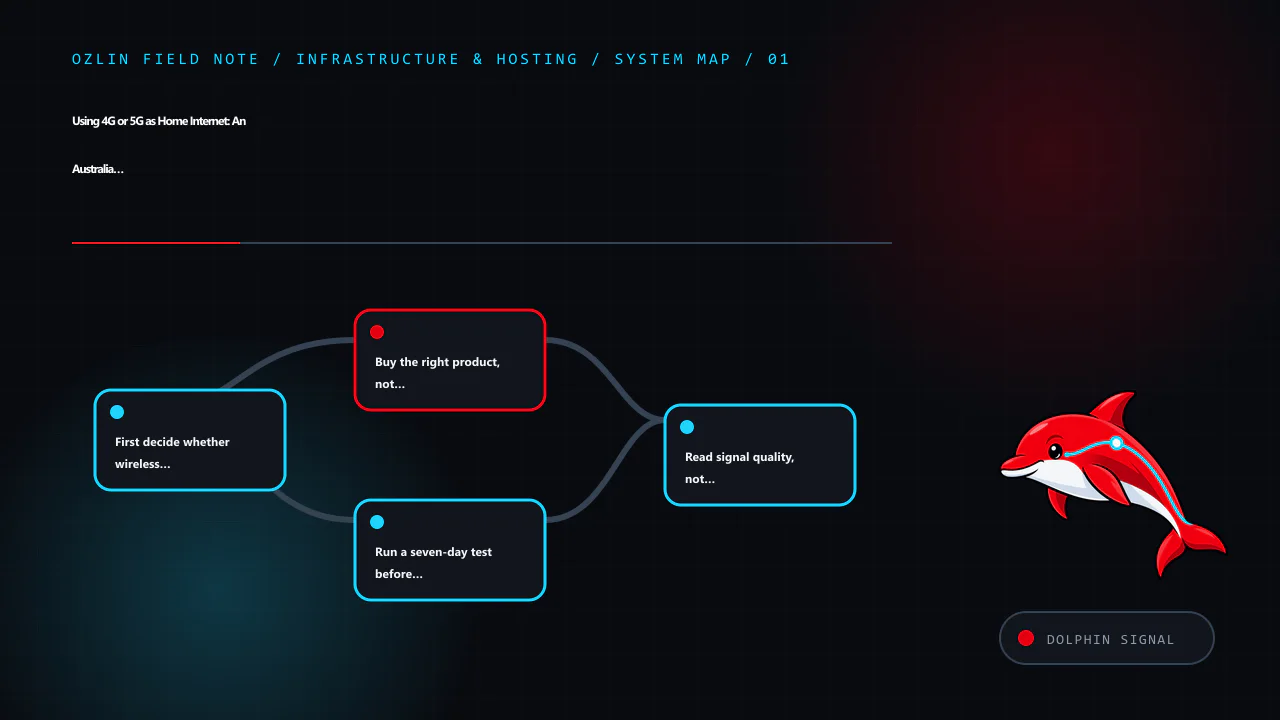
First decide whether wireless suits the workload
Start with the household's difficult traffic, not its easiest speed test. Web browsing and buffered video tolerate variation. Video meetings, cloud gaming, competitive games, large backups, remote-desktop work and live streaming care more about upload, latency, jitter and packet loss.
Wireless home broadband is often worth testing when:
- fibre or a good fixed-line service is unavailable, slow or expensive at the address;
- a renter needs a reversible installation;
- usage is mainly browsing and streaming with modest upload demand;
- a second carrier would provide useful failover for remote work; or
- a temporary premises needs service without waiting for a fixed installation.
Keep fibre or another stable fixed service when predictable upload, very low jitter, a static address, monitored alarms, medical equipment, business continuity or public inbound services are requirements. Carrier product pages themselves warn about these boundaries. Optus says its 5G home service does not support a static IP, fixed-line telephony, back-to-base alarms or medical alert services. One NZ notes that its wireless service requires mains power and may be unavailable during an outage, including for emergency calling. These are product limitations, not minor setup details.
Buy the right product, not an apparent loophole
The cheapest “unlimited mobile” offer may be designed only for a handset. Router, hotspot, location and fair-use rules vary. Check the written terms before buying hardware around a plan.
Current official examples illustrate the differences:
| Product characteristic checked on 29 August 2026 | What the provider says | Practical consequence |
|---|---|---|
| Telstra 5G Home Internet | The supplied home modem is fixed to the nominated address; moving it outside the home area can trigger a severe speed cap. A modem supplied for the plan may need to be returned after early cancellation. | Recheck eligibility before moving and retain packaging and return instructions. |
| Optus 5G Home Internet | Requires the Optus modem and SIM, is service-qualified by address and does not support a static IP. Speed depends on congestion, location, placement and other conditions. | Do not assume bring-your-own equipment, portability or inbound IPv4. |
| One NZ wireless broadband | Requires a One NZ modem, restricts the SIM to that device and the service to the registered location. Continuous 5G coverage is not guaranteed. | Treat the gateway as fixed customer equipment and verify the current network-guarantee conditions. |
| Spark wireless broadband | Availability is selected by address and usage; a compatible Spark modem is required for its 4G/5G wireless plans. | Use the address checker and confirm the exact supplied or supported gateway before purchase. |
This is not a complete market comparison. It shows why “put any SIM in any router” is unsafe purchasing advice. Also check minimum term, modem repayment or non-return fees, data cap, speed cap, fair use, cancellation process, cooling requirements and whether an external antenna is supported.
Run a seven-day test before cancelling fixed broadband
Treat the first week as a small site survey. Keep the old service active and build a test sheet with the same locations and times each day.
- Test at least three plausible gateway positions: windows on different sides of the premises, an elevated open shelf and the place where Ethernet can reach the main router.
- Test morning, afternoon and the evening busy period. A single best result is not representative.
- Connect one computer by Ethernet to the cellular gateway. This separates the mobile link from household Wi-Fi.
- Record download, upload, idle latency, latency during upload and download, jitter and packet loss.
- Repeat the real workload: a video meeting, VPN session, game, large upload and 4K stream if those matter.
- Reboot the gateway and confirm that service, IPv6 and any VPN reconnect correctly.
- Record outages and band or cell changes rather than averaging them away.
Use median results to describe normal service and p95 latency or the worst ordinary busy-period samples to expose instability. Do not compare an Ethernet result from one provider with a distant Wi-Fi result from another.
If several carriers are plausible, test more than one. A phone can identify whether a network deserves a gateway trial, but it is not a controlled substitute: phone and gateway modems may support different bands, antennas, carrier aggregation and thermal behaviour.
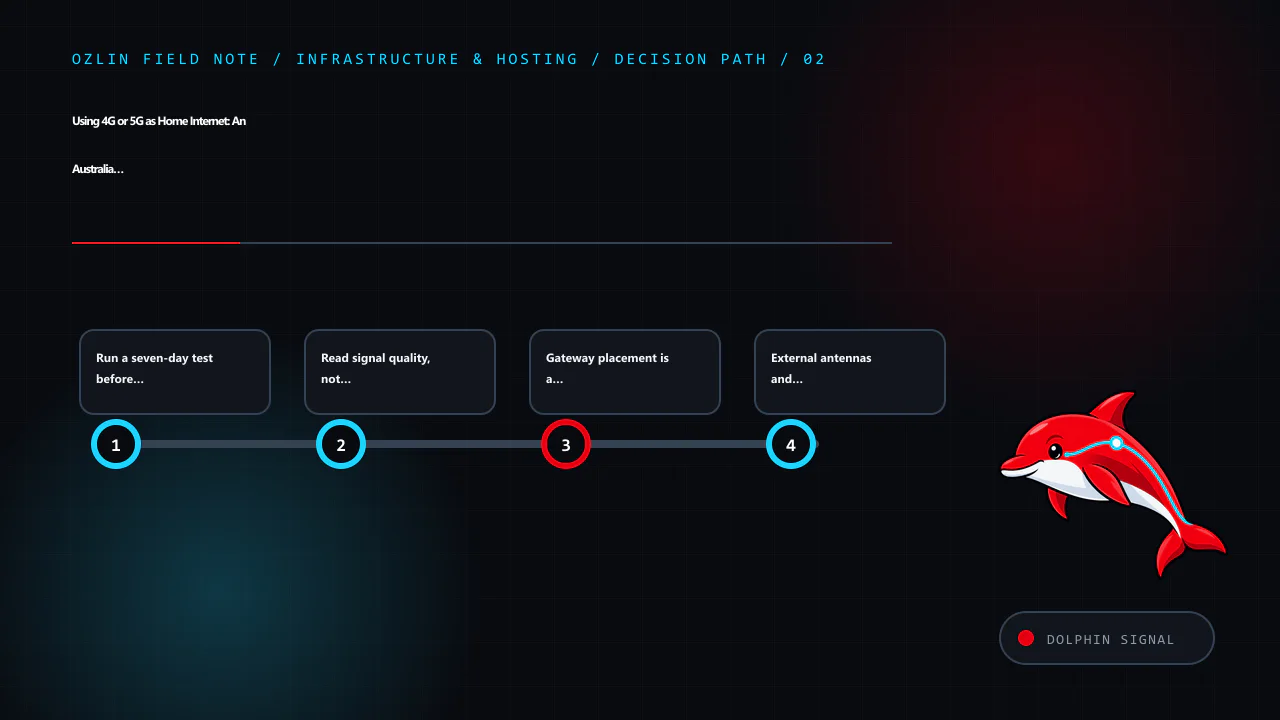
Read signal quality, not only signal bars
Many gateways expose RSRP, RSRQ and SINR. RSRP describes reference-signal power; RSRQ adds a quality view; SINR compares the wanted signal with interference and noise. RSSI alone includes other received energy and can look strong while quality is poor.
Teltonika's published guidance gives useful orientation rather than a universal guarantee: RSRP at or above about -80 dBm is described as excellent, -80 to -90 dBm as good, and below -100 dBm as poor; SINR above about 20 dB is described as excellent, 13–20 dB as good and values near or below 0 dB as poor. Different modems, bands and networks report differently, and tower load can still limit throughput with apparently good radio figures.
Use the numbers comparatively. If moving a gateway one metre improves SINR and busy-period upload consistently, that is more useful than chasing an absolute threshold. Record the serving band or cell when the interface exposes it, but avoid locking bands unless the gateway and carrier support it and repeated measurements show a stable benefit. An unsupported lock can remove useful carrier aggregation or emergency fallback.
Gateway placement is a cellular and Wi-Fi problem
The best cellular position is often close to a window facing a useful tower. Spark's setup guidance tells customers to place its Max Wireless modem near a window in the direction of the best 5G cell. Optus likewise recommends a window position. Test several windows: coated glass, concrete, metal cladding, terrain and neighbouring buildings can change the result.
Do not cook the modem to improve signal. Avoid a sealed cupboard, direct summer sun and the top of another hot device. Leave airflow around it and use a stable power supply. A position that is excellent for the cellular link may be poor for Wi-Fi coverage through the rest of the home.
The clean solution is often:
cellular gateway near the best window → Ethernet → centrally placed household router or access points
If the carrier gateway must remain the router, use wired or mesh access points for distant rooms. If it supports bridge or IP-passthrough mode, a separate router may take over routing and Wi-Fi, but support varies and carrier updates can change behaviour. Avoid creating double NAT accidentally; document which device provides DHCP, firewalling and port mappings.
External antennas and outdoor CPE: useful, not magical
An external MIMO antenna can help when the indoor signal is weak or obstructed and the gateway exposes compatible antenna ports. It can also make things worse through the wrong connector, unsupported frequency range, poor polarisation, long lossy coaxial cable or aim at a congested cell.
Prefer short approved cable runs and equipment designed for the carrier's bands. A purpose-built outdoor CPE keeps the radio close to the antenna and brings Ethernet indoors, avoiding much coaxial loss. Outdoor work must follow electrical, lightning, waterproofing, strata, rental and local installation requirements. Do not improvise a roof installation around power lines; use a qualified installer where the location or regulations require it.
Change one variable at a time and retest across busy periods. A larger antenna is not proof of more capacity: it cannot create spectrum or remove congestion at the tower.
Expect CGNAT and plan around it
Many mobile and wireless-broadband services use carrier-grade NAT. The gateway receives an address that is not a dedicated public IPv4 address, so ordinary inbound port forwarding cannot reach the household. A dynamic-DNS record does not change that upstream translation.
Before purchase, ask whether the plan provides:
- public IPv4, CGNAT or an optional business/static-IP service;
- native IPv6 and whether its delegated prefix remains stable;
- inbound filtering; and
- restrictions on VPN protocols or business/server use.
Outbound HTTPS, modern remote-work VPNs and most consumer applications usually operate through CGNAT, but test the actual employer VPN, console, voice application and peer-to-peer game. For private remote access, an authenticated mesh VPN or outbound tunnel may be appropriate. Do not expose router administration, a NAS or remote desktop directly to the internet merely to defeat a connectivity problem.
If a public server is the objective, use the home-server risk guide and compare a hosted VPS. Wireless home broadband is a consumer access product, not automatically a production hosting platform.
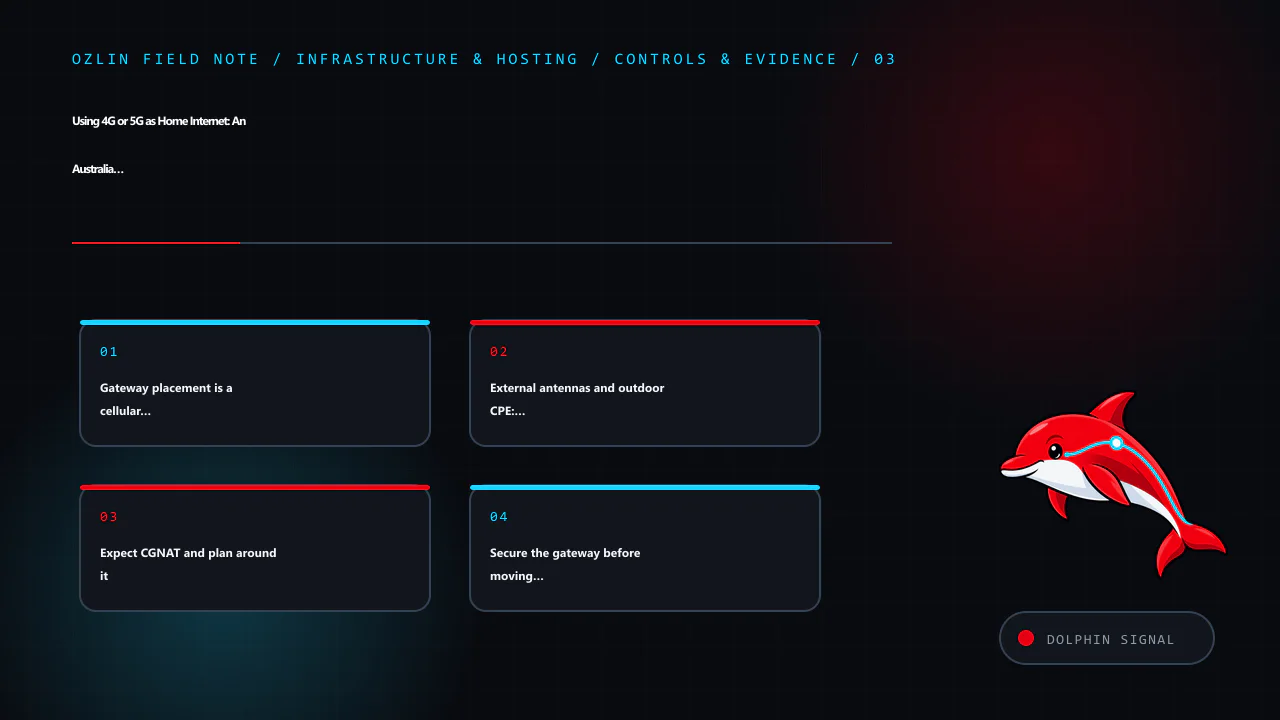
Secure the gateway before moving the household onto it
The Australian Signals Directorate's consumer guidance recommends changing default router credentials, disabling WAN remote management, installing firmware updates, replacing end-of-life routers, using WPA3 where available (or WPA2 as a minimum), reviewing connected devices and disabling unused services such as WPS, UPnP and port forwarding.
Apply that baseline to the cellular gateway and any separate router:
- change the administrator password and store it in a password manager;
- install provider/manufacturer firmware and enable supported automatic updates;
- disable internet-facing administration, Telnet, unused SSH/SNMP, WPS and unneeded UPnP;
- use WPA3 or WPA2 with a long unique Wi-Fi passphrase;
- put guests and poorly supported IoT devices on an isolated guest network;
- back up the known-good configuration without including it in public tickets or screenshots;
- check connected devices and firmware at least every six months; and
- replace equipment that no longer receives security updates.
Do not install cracked firmware or random modem-unlock packages. Apart from breaching terms or radio rules, modified images can add backdoors to the device that protects the entire household network.
Add failover deliberately
A 4G/5G link is valuable as a second path when it uses a different carrier and failure domain from the fixed service. A dual-WAN router can check reachability and fail over automatically, but test stateful sessions: meetings and VPNs may reconnect because the public address changes.
For important home work:
- choose a backup carrier with independent coverage where practical;
- connect the gateway, router and access point to an appropriately sized UPS;
- configure health checks against more than one reliable destination;
- alert on failover so an unnoticed outage does not consume a capped backup plan;
- test restoration to the primary path; and
- keep an ordinary phone connection available for emergency communication.
A carrier gateway still depends on tower power, backhaul and local congestion. Two devices on the same network are not two independent links.
A practical go/no-go scorecard
Do not cancel fixed broadband until the wireless trial passes the household's real requirements.
| Question | Pass condition to define before testing |
|---|---|
| Evening performance | Required download and upload remain usable across several busy periods |
| Interactive quality | Latency under load, jitter and loss support meetings, games and VPNs |
| Coverage | The gateway stays on a usable cell/band without frequent dropouts |
| Plan fit | Router, location, data, speed and fair-use terms permit the intended use |
| Addressing | CGNAT/IPv6 behaviour is compatible with required applications |
| Equipment | Gateway can be placed safely, cooled and connected by Ethernet |
| Security | Supported firmware, strong administration and segmented Wi-Fi are configured |
| Continuity | Power, voice/alarm implications and failover are understood and tested |
| Cost | Plan, modem, antenna, cabling, UPS and any second link beat the alternative over the intended term |
The honest outcome may be “wireless is good enough,” “wireless is an excellent backup,” or “keep fibre.” All three are successful tests. The related Australia and New Zealand internet-cost article explains why mobile allowance pricing, fixed-access wholesale costs and data-centre traffic cannot be compared as one market.
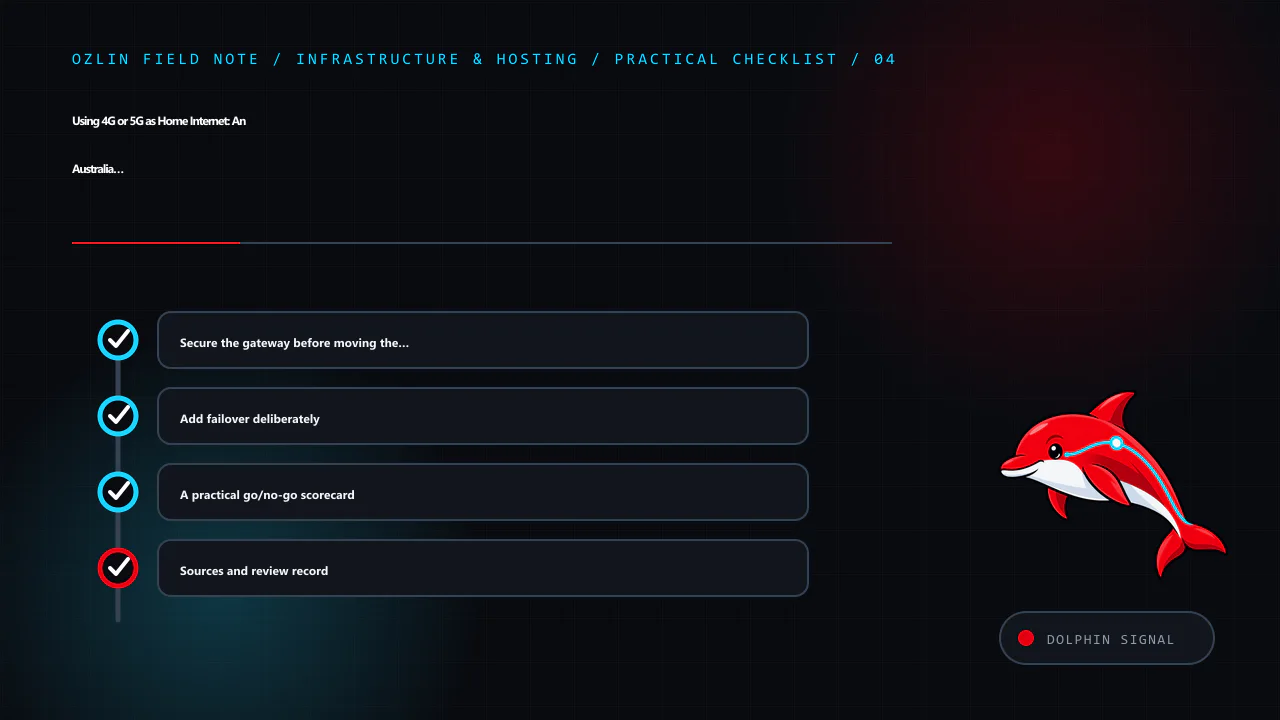
Sources and review record
Sources were accessed on 29 August 2026. Product terms, availability, equipment and security guidance are scheduled for review by 29 November 2026.
- Telstra — 5G Home Internet Critical Information Summary
- Telstra — 5G home-internet support and location lock
- Optus — 5G Internet Everyday Critical Information Summary
- One NZ — wireless-broadband terms
- One NZ — 4G/5G wireless broadband
- Spark NZ — wireless-broadband plans
- Spark NZ — Max Wireless gateway placement
- Teltonika Networks — mobile signal-strength recommendations
- Australian Signals Directorate — secure your Wi-Fi and router
- ACCC — broadband speed claims
- ACCC — consumer rights and guarantees
AI assisted with source discovery, drafting and copyediting; Ozlin Info remains responsible for publication.